Unicode 1.0.1 for iPhone

[cliquez ici pour passer en français]

Forget about emoji: Here’s a simple board of characters that you can copy and paste into any application — whether you want to write an email, a tweet or a blog post — and they will display fine on any iPhone, any Mac, and in most Windows applications (but probably not on other phones, though).


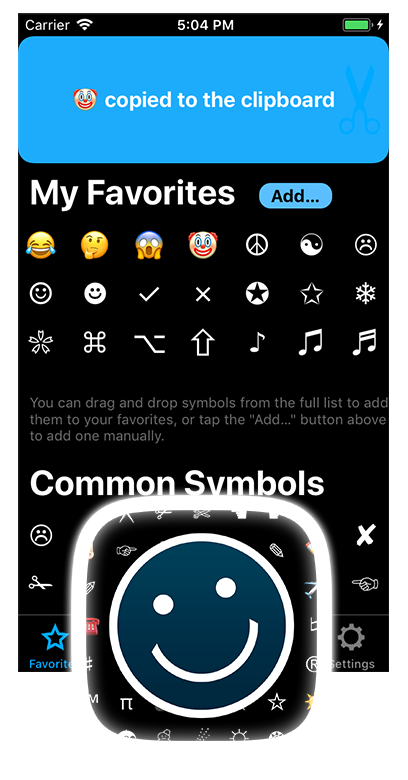
Choose between several pages of Unicode symbols, and save your favorites for quick access on the first page of the application.


  • tap a symbol, and it’s copied immediately to the clipboard (you can quit the application and then paste it wherever you want)

  • tap several symbols, then tap the "copy" button, to copy a string of symbols

  • tap-hold a symbol to add it to your favorites page (or tap-hold a symbol to remove it from your favorites)


The application is sold for $0.99 on the App Store.


FAQ

How can I get an Apple logo?

The application would never have been approved by the App Store if it included the Apple logo. If you have upgraded to version 1.0.1 of Unicode, you can add the Apple logo to the application yourself. Tap-hold the apple below until the "Copy" command is displayed, and copy it to the clipboard.

Now, launch Unicode and, on the first page that lists your favorites, tap-hold one of the empty buttons until the application offers to add the symbol to your favorites.

Note: The Apple logo is actually not a valid Unicode character. It will be displayed correctly on an iPhone or a Mac, but you may not want to use it for public blogging, tweeting, or e-mailing your PC friends.

How can I get more symbols than the application offers?

If you have upgraded to version 1.0.1 of Unicode, you can add any character to your favorites page. All you have to do is copy the symbol (from Mobile Safari, Mail, or any other app), launch Unicode, and tap-hold one of the empty buttons on the favorites page, until the application offers to save it.

Please note that, if you have several characters in your clipboard, the application will only save the first one. Make sure you don’t accidentally copy spaces or other characters in front of the symbol you want to add.

For instance, if you need an unbreakable space ( ) for your blog posts, you can select and copy this character: “ ” and add it to your favorites (make sure not to include the quotation marks in your selection).